Omniverse Queue
NVIDIA Omniverse is a scalable, multi-GPU real-time simulation and collaboration platform for building and operating metaverse applications. This queue provides access to Omniverse-enabled nodes on Palmetto through the Slurm scheduler.
- This queue is part of a pilot program and currently has limited support.
- To learn more about using this resource or to determine if it's the right fit for your work, please schedule a consultation with our team.
The Omniverse queue is only available to Clemson faculty, staff, and students. External users cannot be added to an allocation on the Omniverse Queue.
Requesting
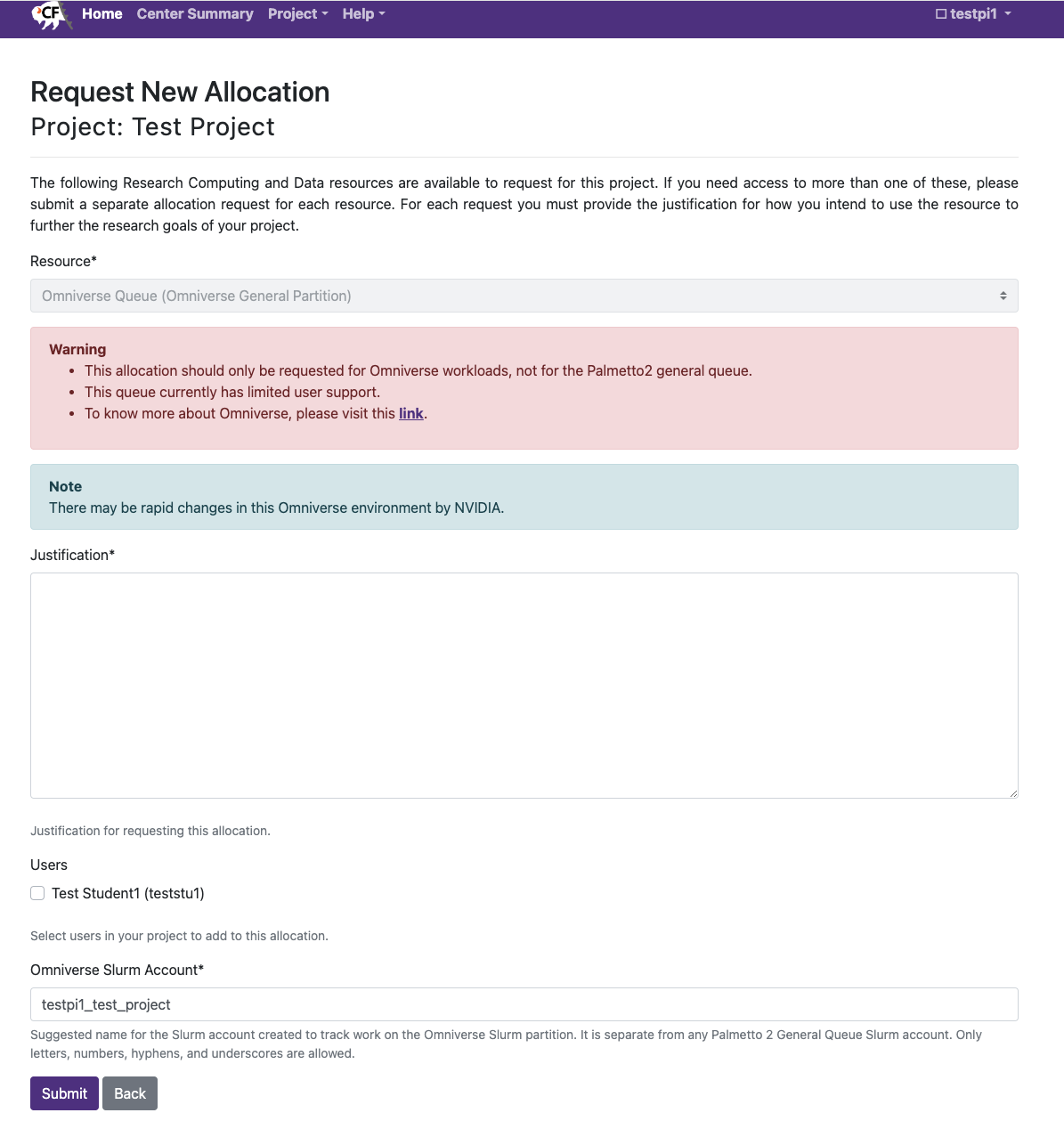
Select Omniverse Queue when requesting an allocation. Then fill out the form:
- Justification: tell us how using Omniverse will benefit your research or class.
- Omniverse Slurm Account: you can leave the default value.
Using the Resource
An approved allocation on the Omniverse Queue grants login access to the Palmetto 2 (Slurm) login nodes.
To connect with the login node, follow the instructions on connecting via SSH to the Slurm Login Nodes.
It may take up to 30 minutes between allocation approval (or being added to an approved allocation) and when access control is fully synced and a user can submit a job.
To run interactive jobs in the Omniverse Queue, you can use the salloc command
from the login node. The -p flag is used to specify the partition, in this
case, omniverse. The -A flag specifies the Slurm account associated with
your allocation. You can find the appropriate Slurm account name in the
Allocation Attributes section of the allocation detail page, or on the main
Allocations page in ColdFront. For example, if we have the following allocation:
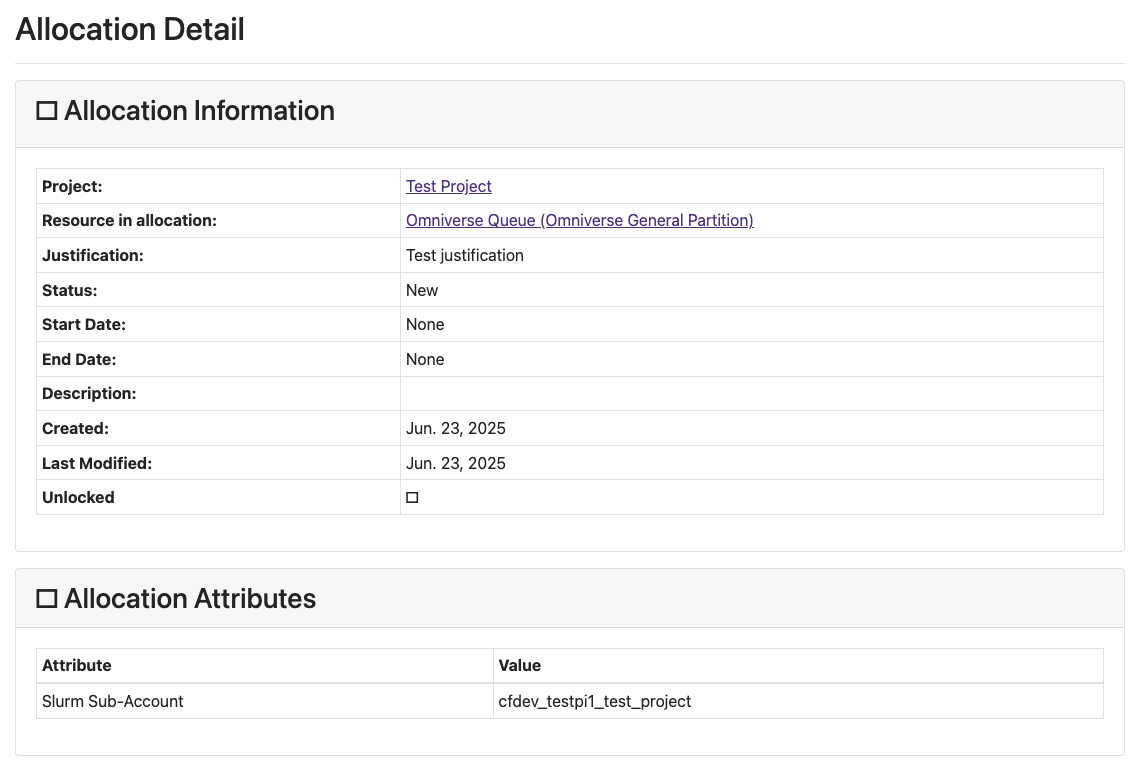
We would start an interactive job using:
salloc -p omniverse -A cfdev_testpi1_test_project -n 8 --mem=32G --gpus=1 --x11 --constraint=graphics --time=08:00:00
You should request the number of CPUs, memory, GPUs, and time based on your job's requirements.
For instructions on launching Isaac Sim and connecting to Clemson's Omniverse Nucleus server, see the Omniverse software guide.