AI Code Assistants on Palmetto
AI code assistants can be useful for Palmetto 2 workflows such as explaining unfamiliar code, drafting Slurm scripts, interpreting job failures and suggesting small fixes. This page covers Palmetto 2-specific guidance for tools such as Codex, Claude Code and similar assistants.
This page supplements Clemson's broader AI guidance and Palmetto 2's existing Acceptable Use Guidelines.
AI code assistants must be started inside a Slurm allocation on a compute node. Do not run them on the login nodes.
Allowed Use
On Palmetto 2, AI code assistants may be used to:
- read and explain code, logs and job output
- edit files in directories you control
- help draft or revise Slurm scripts
- run normal development commands inside a compute allocation
- perform bounded non-interactive tasks such as log summarization or code review
Not Allowed
Do not use AI code assistants to:
- run on the login nodes
- modify shared software stacks, central module files or shared base environments
- submit rapid loops of Slurm commands
- move large data through login or Open OnDemand hosts instead of the DTNs
- enter data into AI tools when Clemson policy, sponsor rules, IRB, export-control or project requirements do not permit it
Start From A Compute Session
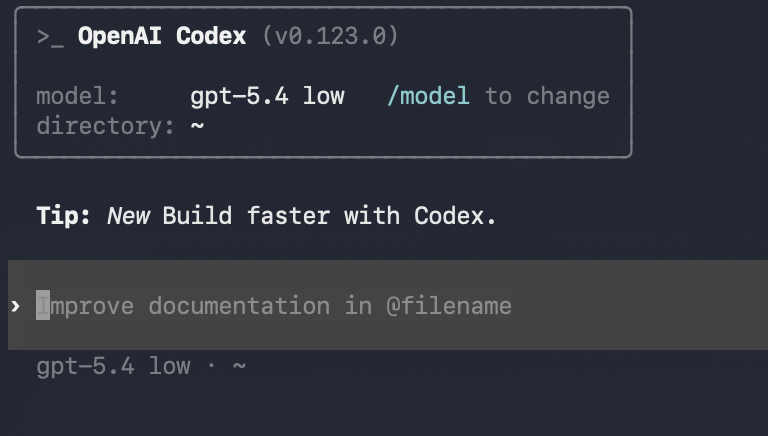
Use an interactive job, an Open OnDemand session or a batch job. For example:
salloc --nodes 1 --ntasks 1 --cpus-per-task 4 --mem 8G --time 02:00:00
module load codex
codex
Interactive jobs are the right place for writing, testing and debugging. See Job Types.
Authentication And Clemson AI Services
For Codex on Palmetto 2, users should authenticate in one of these ways:
- sign in with their Clemson-managed ChatGPT Edu account
- use OpenAI through RLS with an RLS API key and RLS OpenAI credits
- use local RLS models with Codex instead of OpenAI-hosted models
- use a Clemson-managed OpenAI API key if one has been provided for your work
For ChatGPT Edu sign-in on a remote compute session, prefer device-code login:
codex login --device-auth
Keep ~/.codex/auth.json and API keys private. Do not put them in Git
repositories, shared shell scripts or support tickets.
Data And Clemson AI Guidance
Before using any AI tool, classify the data and confirm that the tool is appropriate for that data.
- Public data: generally acceptable.
- Internal Use or Confidential data: only use with Clemson-approved, contract-protected AI services, and only when sponsor, IRB, export-control, publication or project rules also permit it.
- Restricted data: do not enter into AI tools unless you have explicit approval for that use case.
- Third-party plugins, add-ons, connectors and bots can change the data path and often require extra review.
See Clemson AI Guidelines, the Academic and Research AI Usage Quick Guide, and AI Tools at Clemson.
Storage, Secrets and Shared State
AI assistants can read what you can read. Start them in the directory you actually intend to work in.
- Keep API keys, SSH keys, tokens and auth files out of Git repositories and shared scripts.
- Treat AI tool auth caches the same way you treat passwords.
- Prefer user-owned environments, repo-local builds or containers for package installs.
- Do not let assistants modify shared lab environments unless you are explicitly maintaining them.
- Use the DTNs or Globus for substantial data movement.
See Storage Overview and Data Transfer Overview.
Slurm And Git Safety
Before approving an action, review it the same way you would review it if a person had proposed it.
- Check
sbatch,sallocandsrunresource requests before running them. - Avoid loops that repeatedly call Slurm commands.
- Review
scancelcarefully before cancelling jobs. - Use Git checkpoints and review diffs before pushing to a remote.
See About the Job Scheduler and Acceptable Use Guidelines.