NVIDIA Omniverse
NVIDIA Omniverse is a platform for real-time 3D simulation and collaboration. At Clemson, you can use Omniverse by running NVIDIA Isaac Sim and Isaac Lab in an Apptainer container on Palmetto's Omniverse-enabled compute nodes and connecting to the running simulation using NVIDIA's WebRTC streaming client for Isaac Sim. Clemson also hosts an NVIDIA Nucleus server that provides shared Omniverse content for your simulations.
Before you start
- Request and receive access to the Omniverse Queue allocation.
- Connect from campus or through the Clemson VPN.
- Connect to Palmetto with an SSH client that supports X11 forwarding. On Windows, use MobaXTerm. See the Palmetto X11 forwarding guide for setup instructions.
Prepare Nucleus access
Omniverse Nucleus is the database and collaboration engine of Omniverse. It contains Nucleus-hosted content such as OpenUSD scenes, robot assets, materials, and shared project files. To let the running Isaac Sim container access this content, create an API token and save it in your Palmetto home directory before requesting an interactive job. For more information, see the NVIDIA Nucleus documentation.
The Clemson Nucleus server is available at
ovxnucleus.rcd.clemson.edu. Sign in with
Login with Clemson University SSO and your Clemson credentials. In the
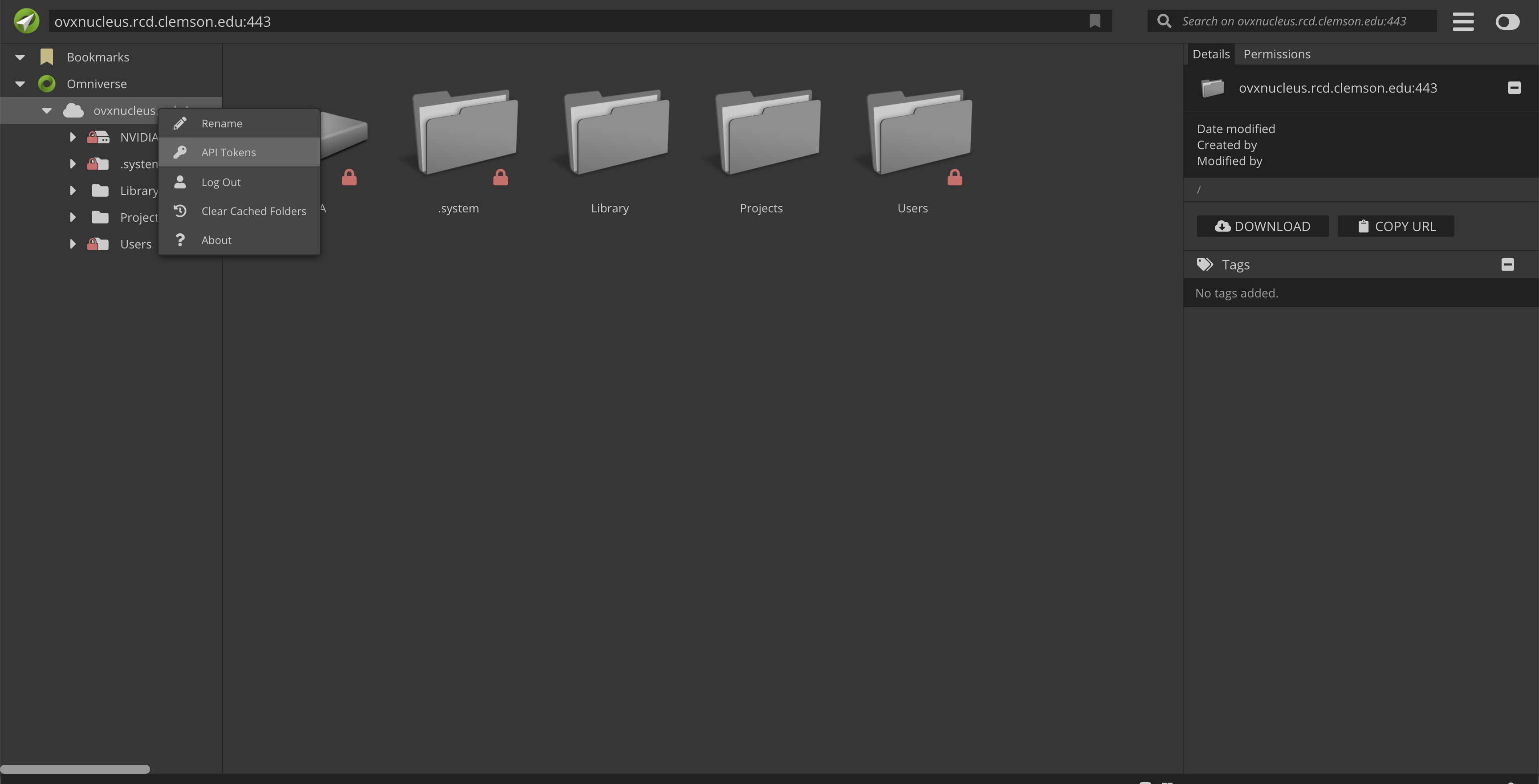
Omniverse interface, right-click the server connection in the left panel, select
API Tokens, and create a token. Use the token as the value of OMNI_PASS.
The Isaac Sim container uses OMNI_USER and OMNI_PASS to authenticate to
Nucleus.
On a login node, use a text editor of your choice, such as nano or vim, to
create a file in your Palmetto home directory. This guide uses ~/.omnitoken as
the example filename. Add the following export commands to the file, replacing
PASTE_SECRET_TOKEN_VALUE_HERE with the secret token value provided by Nucleus:
export OMNI_USER='omni-api-token'
export OMNI_PASS='PASTE_SECRET_TOKEN_VALUE_HERE'
Start an interactive Omniverse job
From a Palmetto login node, request an interactive job on the omniverse
partition. Replace YOUR_SLURM_ACCOUNT with the account listed in your
Omniverse allocation in ColdFront. Do not use another user's account name.
salloc -p omniverse -A YOUR_SLURM_ACCOUNT -n 8 --mem=32G --gpus=1 --x11 --constraint=graphics --time=08:00:00
The --constraint=graphics option requests a graphics-capable compute node. The
--x11 option enables X11 forwarding for other graphical applications; Isaac
Sim itself is displayed through the WebRTC streaming client.
Adjust the CPU, memory, GPU, and time requests to suit your workload and the queue's current limits.
Launch Isaac Sim
Once salloc has allocated an Omniverse compute node, source your token file
and launch the Isaac Sim, Isaac Lab, and Isaac ROS container.
Before launching the container, load the Nucleus authentication variables:
source ~/.omnitoken
Launch the container:
/omnidev/bin/launch-isaac-lab-ros
At the container prompt, start Isaac Sim in headless streaming mode:
/isaac-sim/runheadless.sh
Startup can take up to five minutes, and warnings may appear in the terminal during startup. Wait until the terminal reports that the Isaac Sim Full Streaming App is loaded before connecting a client. The launcher and paths above are specific to the Clemson-provided container setup; if they are unavailable or have changed, contact RCD support.
Connect to the running simulation
Use NVIDIA's WebRTC streaming client for Isaac Sim. See NVIDIA's Livestream Client documentation for client setup instructions.
You can connect the Isaac Sim WebRTC client to the compute node only from the Clemson network or while connected to the Clemson VPN.
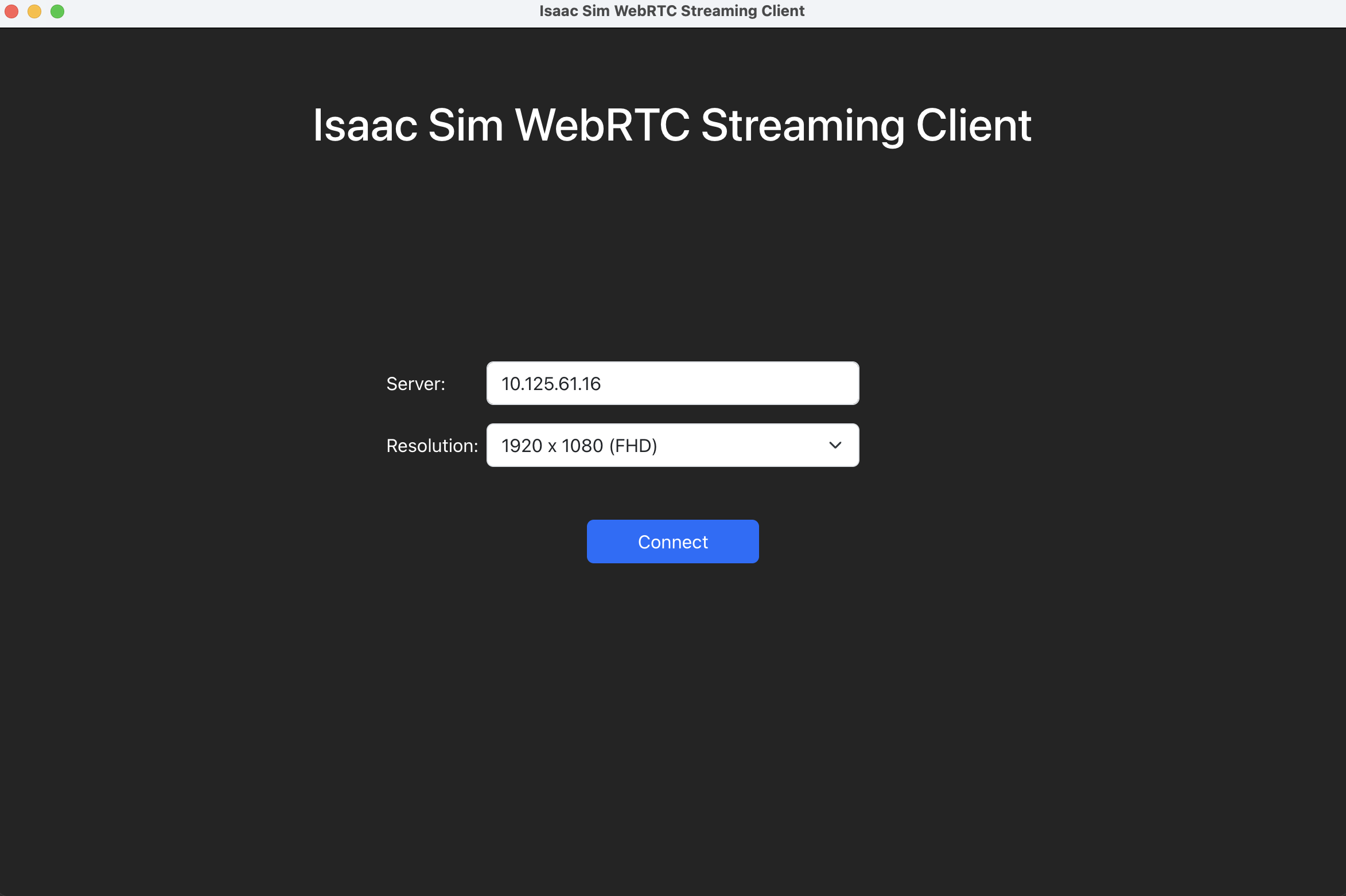
In the client's Server field, enter the hostname or IP address for your allocated compute node. If the hostname does not resolve from your client, use the node's IP address instead. The address shown in this screenshot is an example.
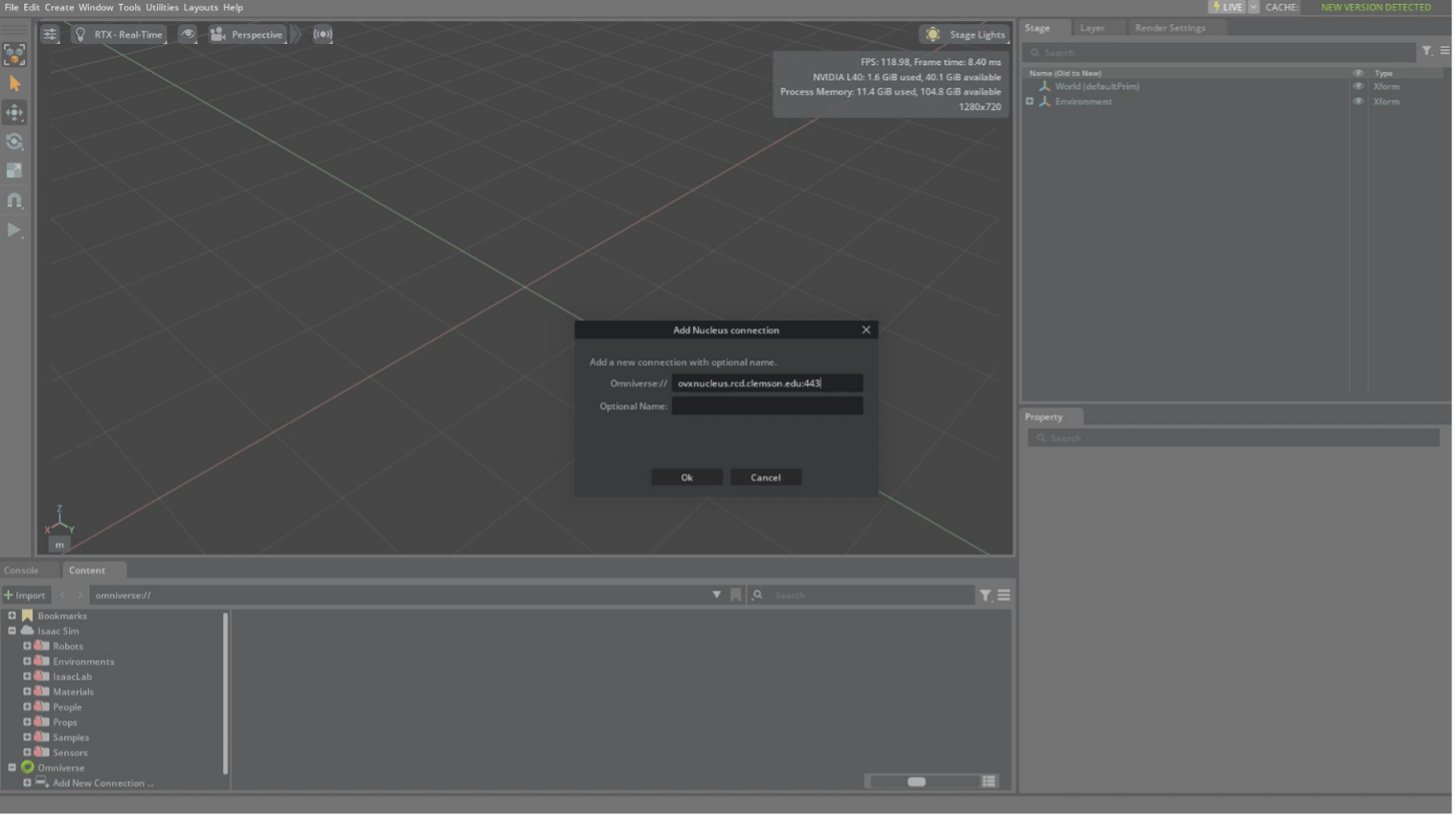
After connecting, add Clemson Nucleus from the Omniverse content browser. Choose Omniverse > Add New Connection... and enter:
ovxnucleus.rcd.clemson.edu:443
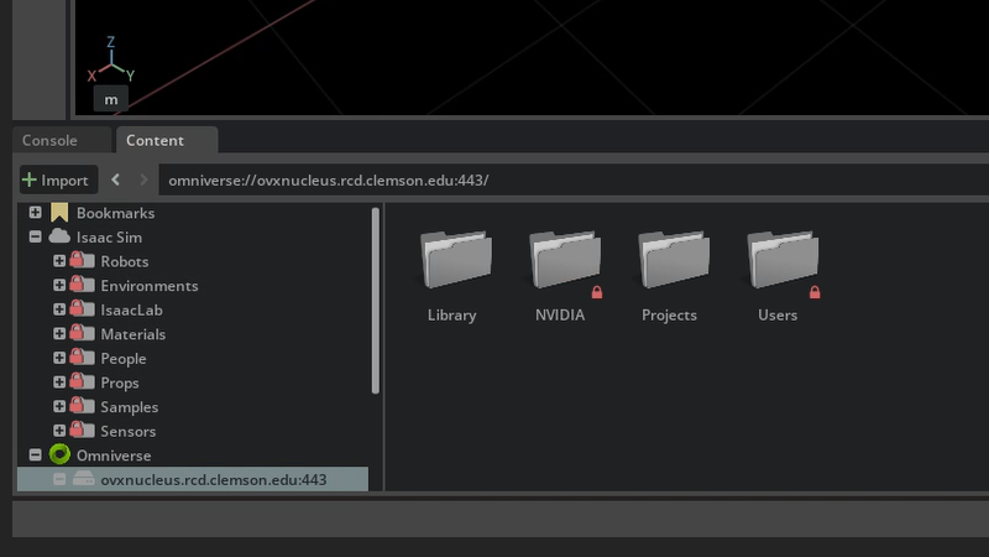
The Nucleus server should then appear in the content window.